🌐Custom Domain

Manage Your Custom Domains in the 'Custom Domain' Section of My Account. Add and Configure Your Own Branded Domains for a Personalized URL Shortening Experience

Img 1 - Custom Domain Section under My Account

Adding a custom domain to your quic.ly account is a premium feature available to all users on our premium plan. Here's a step-by-step guide to setting up your custom domain:

  1. Add a custom domain

  2. Configure DNS records

  3. Verify domain

  4. Activate domain with SSL certificate

A. Adding Custom Domain

  1. Add Custom Domain:

    • Click on 'Add Domain' to initiate the process.

Img 2 - Add Custom Domain
  1. Provide the Domain You Own to Use as a Custom Domain for URL Shortening.

Img 2 - Enter domain you own
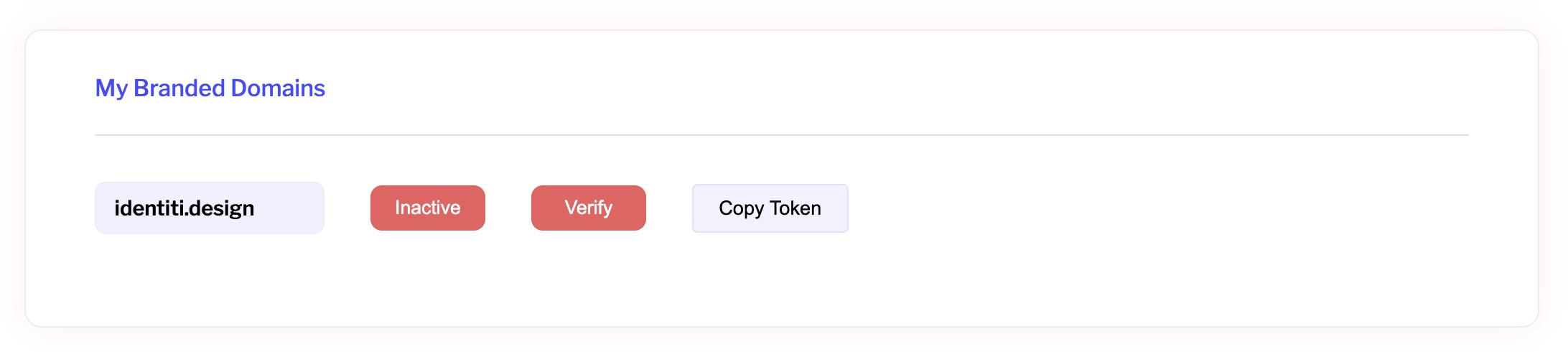
  1. The newly added domain shows up in the list of "My Branded Domains" that you own

Img 3 - List of custom domains you own
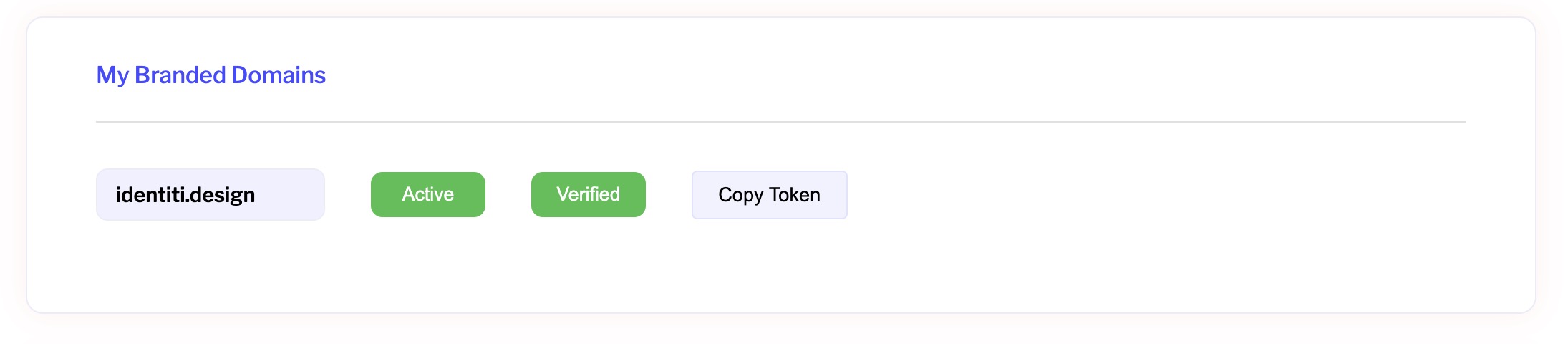
  1. Now that you've added your custom branded domain, the next step is to verify it by configuring the DNS records with the token provided next to your corresponding domain. After the domain is active and verified, the buttons will turn green, indicating that your custom domain is ready for use

B. Configuring your custom Domain

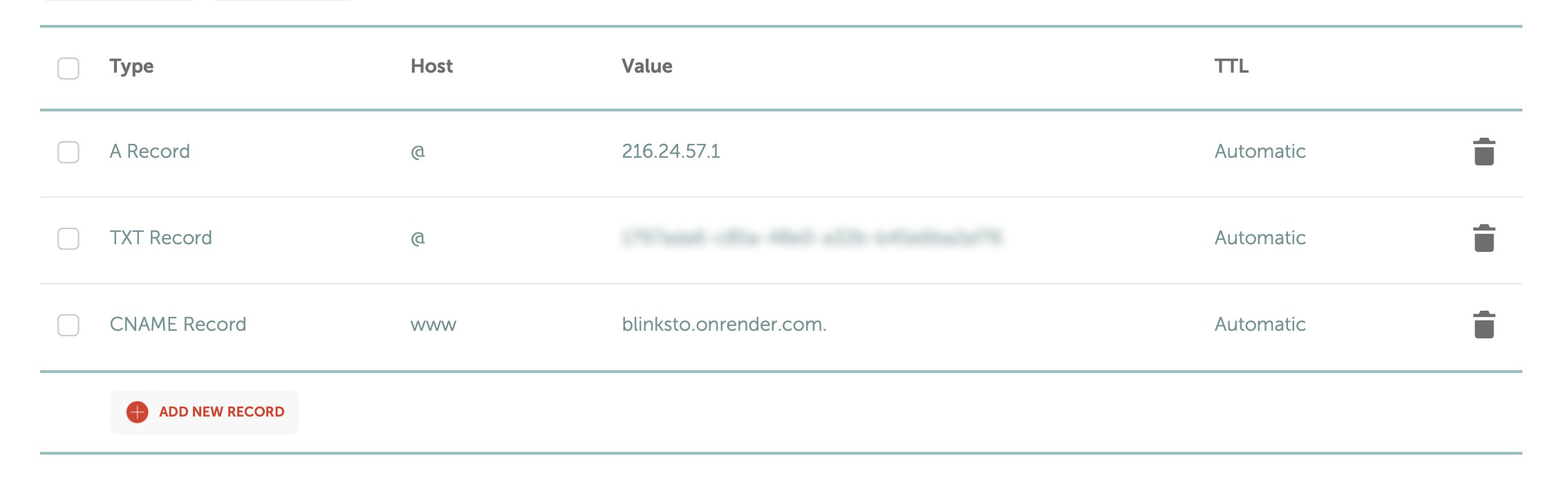
To configure the custom domain, you need to update DNS records in your domain. You need to create 3 records as shown below

  1. "A Record" : To point to IP address 216.24.57.1.

  2. "TXT Record": Create txt record and paste the token provided

  3. "CNAME Record": To point to quic.ly

To set up your DNS record, you'll require access to your domain service provider. The configuration process may vary slightly among different service providers such as GoDaddy, Digital Ocean, Bluehost, BigRock, NameCheap, etc. However, the underlying concepts remain the same. Here's an example of configuring DNS records with identiti.design on NameCheap.

1. Login in to your domain service provider

Img 4 - Login with credentials

2. Click on Manage next to your domain

Img 5 - Manage your domain

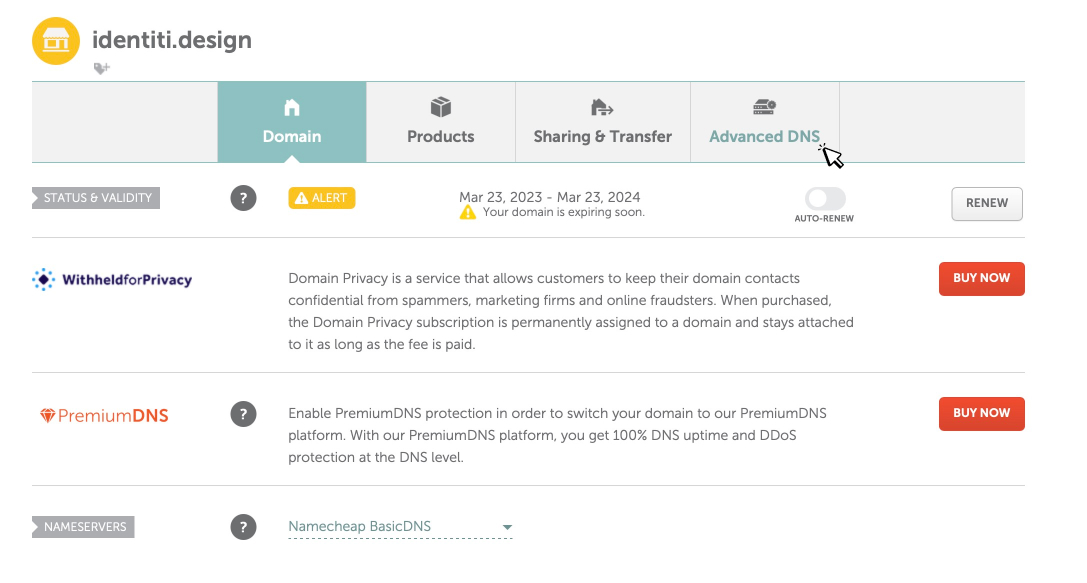
3. Click on Advanced DNS

Img 6 - Advanced DNS

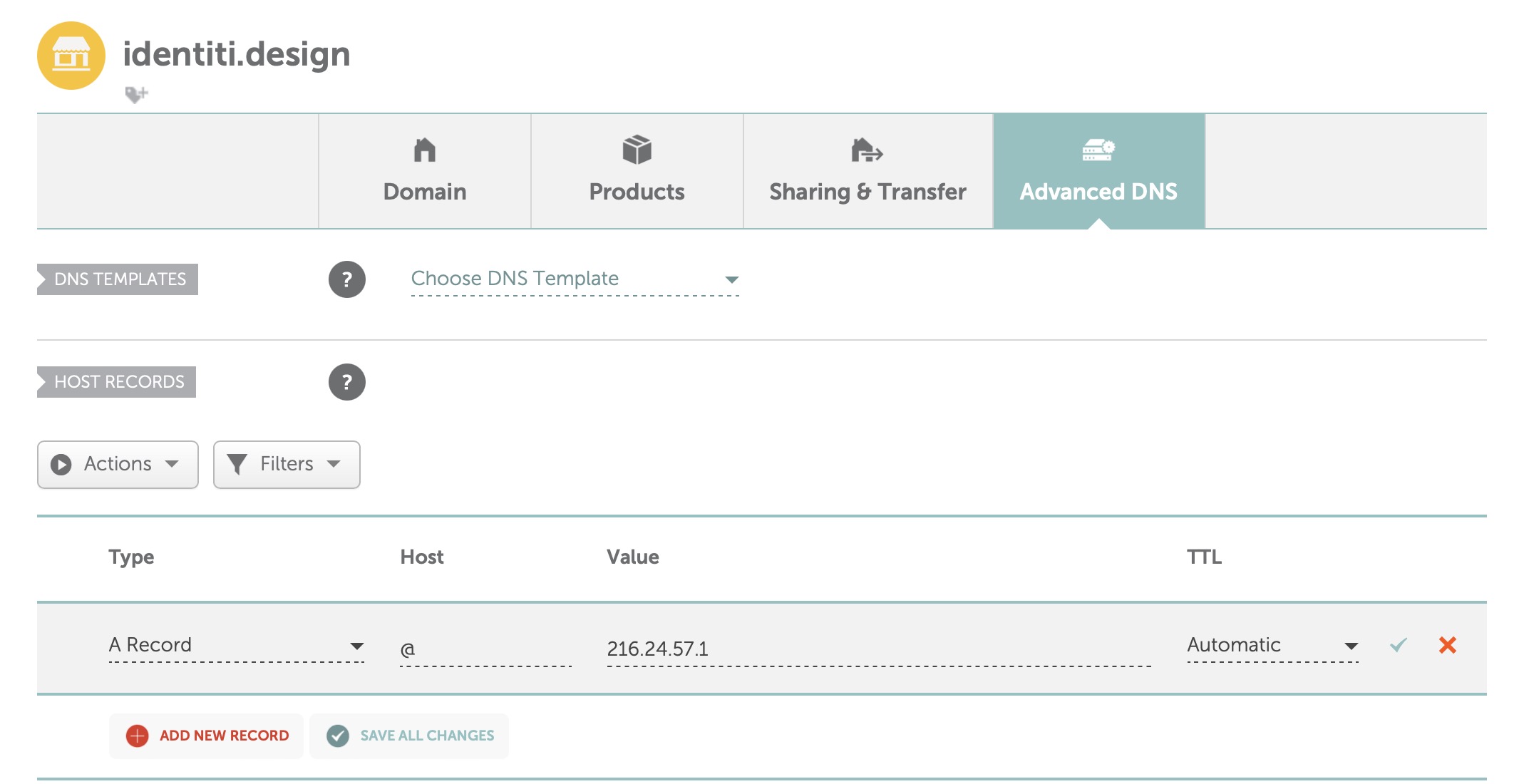
4. Configure the DNS A Record:

  • Click on Add New Record. Select A Record under Type for Value use "216.24.57.1". (Host as @) Click the green tick mark to confirm. This connection ensures that your custom domain links directly to quic.ly's URL shortening service.

Img 7 - Add A Record

5. Add a DNS TXT Record:

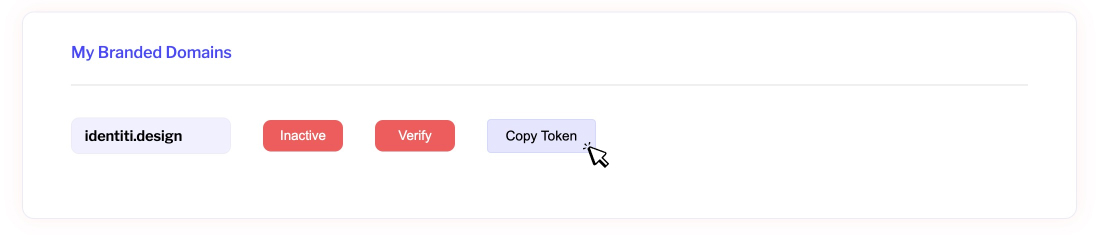
  • In the 'My Branded Domains' section, the token for the domain you want to verify will be displayed. Click 'Copy Token'

Img 7 - Copy Authorization token
Img 8 - Token is copied

  • In NameCheap or your domain service provider, Create a new record type "TXT" and copy the token as the value. (Host as @). Click on green tick mark to confirm

Img 9 - Updated TXT Record with Token

6. Add a CNAME Record:

  • Create a new record type "CNAME" and copy the value as "quic.ly.onrender.com." (Host as www)

Img 10 - Updated CNAME record

The final updated records for A, TXT and CNAME are as follows

Img 11 - Records for Domain Verification

7. Verify Domain:

  • Once the DNS records are updated return to the quic.ly app and under My Branded Domains, click on verify next to the custom domain recently updated

Img 12 - Verify branded domain
  • If the DNS records are accurately updated and propagated within a few hours, your domain will be verified, and the status will change to 'Verified' in green

Img 13 - Verified Domain

8. Branded Domain Activation:

  • Once verified, we'll activate your domain with a free SSL certificate. This process may take up to 24 hours. Once activated, you can start using your custom domain to create shortened links.

Img 14 - Domain Activated and ready to use

Congratulations 🎉 It might have been a challenging process, but your perseverance has paid off, and now you're on your way to creating branded shortened links.

Last updated