> For the complete documentation index, see [llms.txt](https://quicly.gitbook.io/help/llms.txt). Markdown versions of documentation pages are available by appending `.md` to page URLs; this page is available as [Markdown](https://quicly.gitbook.io/help/links-and-campaigns/collections-overview.md).
# Collections Overview
## **Navigating the Collections Page**
The Collections page serves as a centralized hub for all your marketing promotions where you can group links related to a promotion under a collection. Here, you’ll find a comprehensive list of all your collections, each displayed in a component layout for ease of navigation and consistency across the platform.
Img 1 - Collections overview page
## **Collection Component Breakdown:**
Img 2 - Collection component
### *Top Section:*
* The collection's designated color is displayed prominently at the top of the component for quick visual identification.
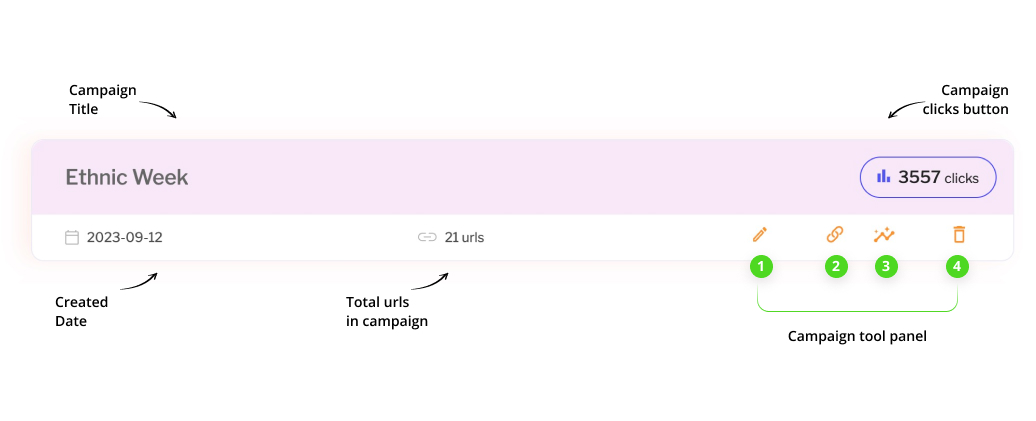
* The collection title appears on the left, with the total number of clicks for the collection on the right. Clicking on the click count directs you to a detailed collection analytics page, where you can dive into aggregate statistics for that specific collection.
Img 3 - Anatomy of a collection component
### *Bottom Section:*
* The creation date and the number of URLs associated with the collection are clearly stated.
* On the right, a tool panel presents several options:
1. **Edit** collection: Redirects to the campaign editing page where you can modify the campaign name and select a new color.
2. **View URLs Icon**: Leads to the collection's detailed URL page, listing all URLs under the campaign as individual components. Here, you can remove URLs from the collection, or perform edits and deletions as necessary.
3. **View Analytics Icon**: Takes you to a detailed analytics page for in-depth insights into the campaign's performance.
4. **Delete Icon**: Allows you to remove the campaign after confirmation.
At the top of the Collections page, an “Add Collection” button is prominently displayed. Clicking on this will navigate you to a creation screen where you can define a new collection name and select a colour from the available choices, setting the stage for a new set of targeted URLs.
By offering a user-friendly interface and seamless navigation, the Collections page simplifies the process of monitoring and managing your marketing efforts, enabling you to focus on what matters most – your brand's success.