# Account Details

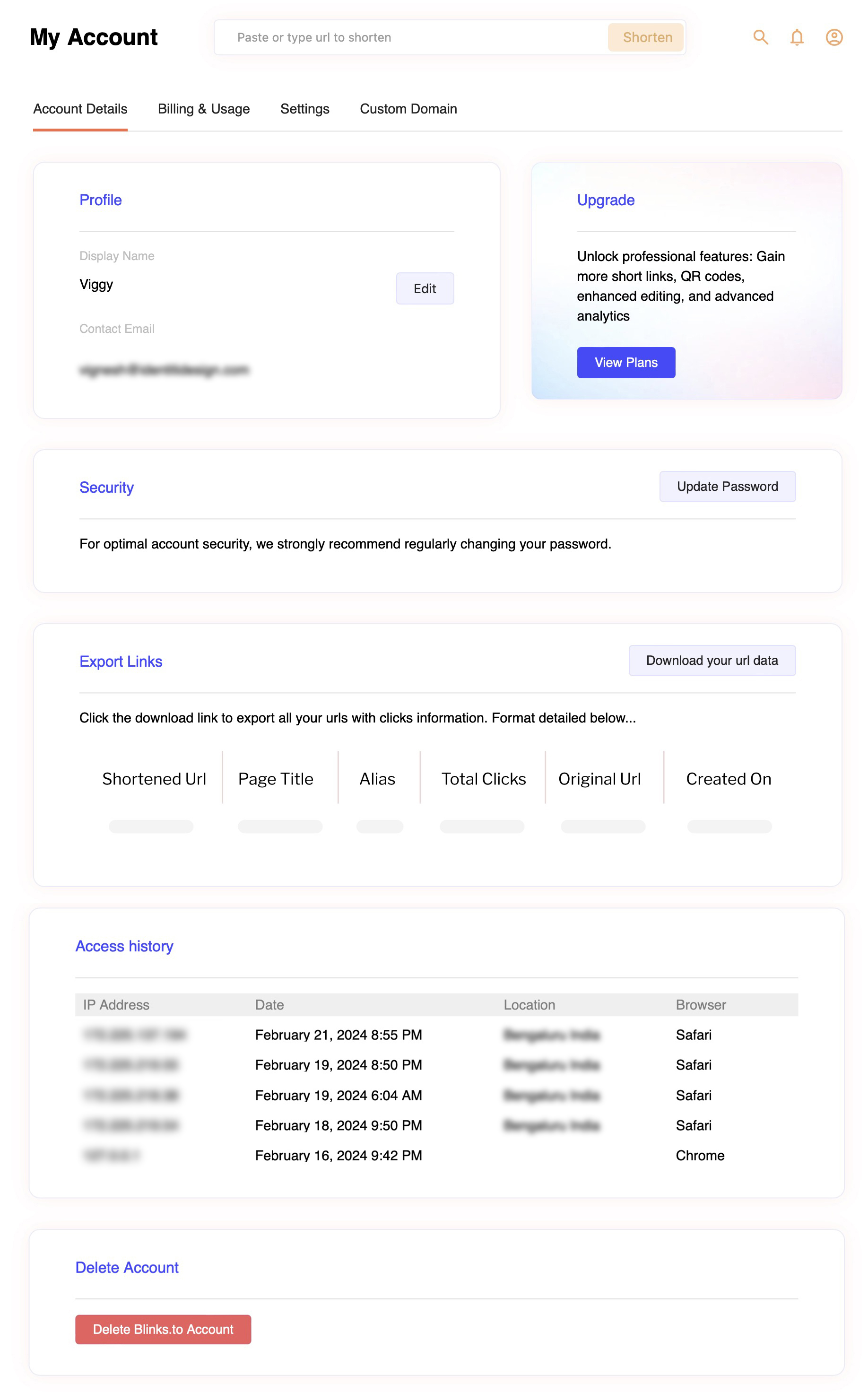
The Account Details page offers comprehensive access to your profile details, a convenient password reset feature, the ability to export your data, insights into your login access history, and the option to delete your account if necessary

<figure><img src="https://2213782032-files.gitbook.io/~/files/v0/b/gitbook-x-prod.appspot.com/o/spaces%2FcuQD9bKpuaPH1WnZJ9Zl%2Fuploads%2FUqoj9gXcYAa1XVyL6WTv%2FMy%20Account.jpg?alt=media&#x26;token=cd58acff-bf91-404f-907c-84d86a53980f" alt=""><figcaption><p>Img 1 - Account Details page in My Account</p></figcaption></figure>

### <mark style="color:purple;">A. Profile Section:</mark>

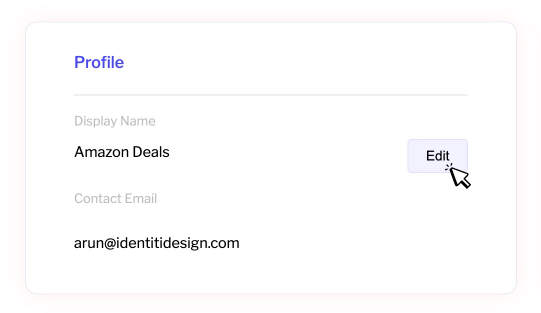
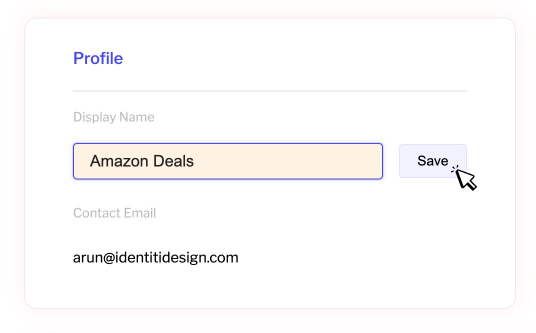
The Profile section showcases your username and the contact email associated with your account. Initially, the username serves as the display name for your account. You have the flexibility to modify your display name by clicking on the edit button located next to it. Remember, the display name is distinct from your username and changing it won't impact your account credentials

**To modify your display name, adhere to these steps**

1. Click on the 'Edit' button adjacent to the display name.
2. Amend the display name as desired and confirm the changes by clicking 'Save.'
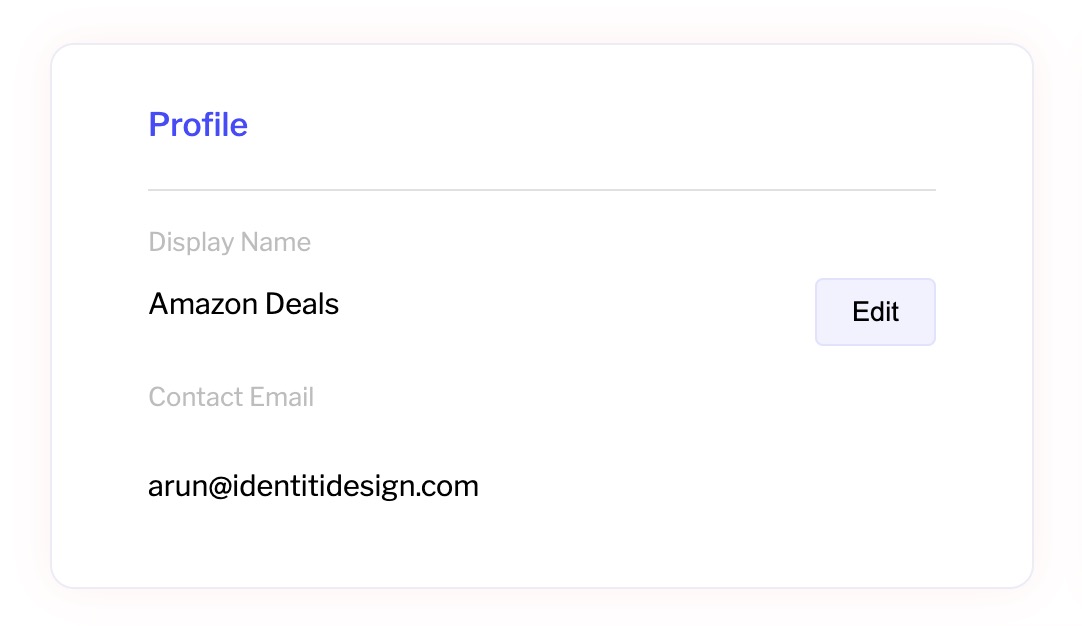
3. The updated display name will be automatically reflected across the entire app.

These steps are visually presented in the following tabs for easy reference.

{% tabs %}
{% tab title="Step 1" %}

<figure><img src="https://2213782032-files.gitbook.io/~/files/v0/b/gitbook-x-prod.appspot.com/o/spaces%2FcuQD9bKpuaPH1WnZJ9Zl%2Fuploads%2FcTZsPNO9A5dmfdEj6QVT%2Fprofile%201.jpg?alt=media&#x26;token=8a86a440-2a1c-4988-a1c9-4fad66d1499c" alt=""><figcaption><p>Img 2 - Profile Display Name Edit</p></figcaption></figure>
{% endtab %}

{% tab title="Step 2" %}

<figure><img src="https://2213782032-files.gitbook.io/~/files/v0/b/gitbook-x-prod.appspot.com/o/spaces%2FcuQD9bKpuaPH1WnZJ9Zl%2Fuploads%2Fax8yS6aKJHjCtGrVsNgt%2Fprofile%202.jpg?alt=media&#x26;token=9fde2376-94d4-424b-ae03-3cbc96c1c08e" alt=""><figcaption><p>Img 3 - Profile Name update</p></figcaption></figure>
{% endtab %}

{% tab title="Step 3 " %}

<figure><img src="https://2213782032-files.gitbook.io/~/files/v0/b/gitbook-x-prod.appspot.com/o/spaces%2FcuQD9bKpuaPH1WnZJ9Zl%2Fuploads%2F5XNc4KCbCXzHFiovdil9%2Fprofile%203.jpg?alt=media&#x26;token=b7f4a821-9523-411e-9822-0d34205c3657" alt=""><figcaption><p>Img 4 - Updated profile with new display name</p></figcaption></figure>
{% endtab %}
{% endtabs %}

### <mark style="color:purple;">B. Security: Password Reset</mark>

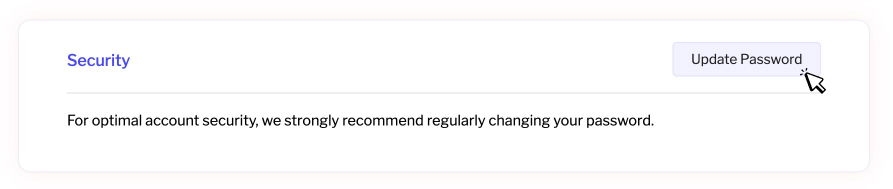
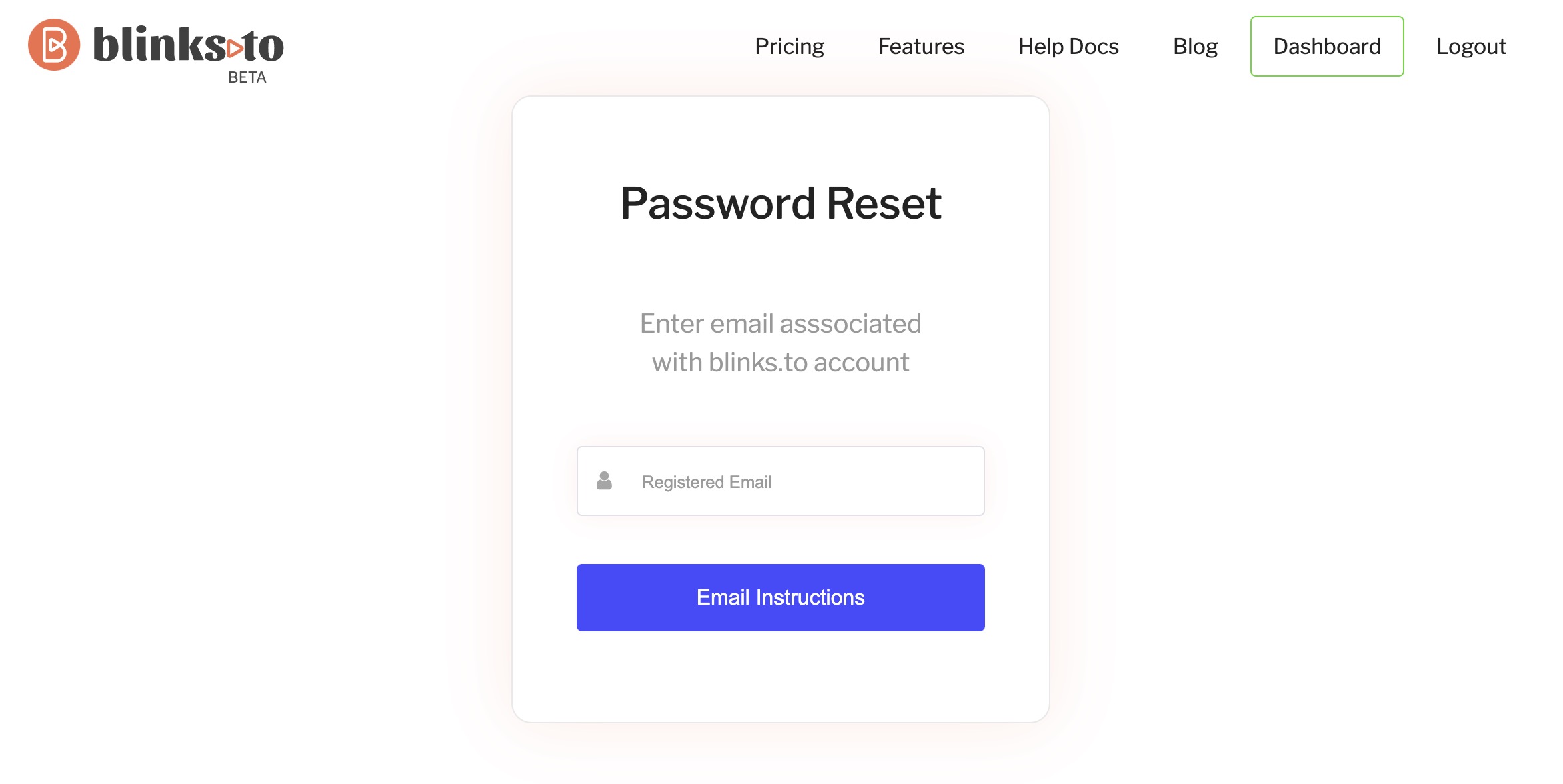
To enhance the security of your account, it is recommended to update your password regularly. The Security section provides a user-friendly feature for resetting your password.

**Follow these steps to update your password:**

1. Click on the 'Update Password' button.
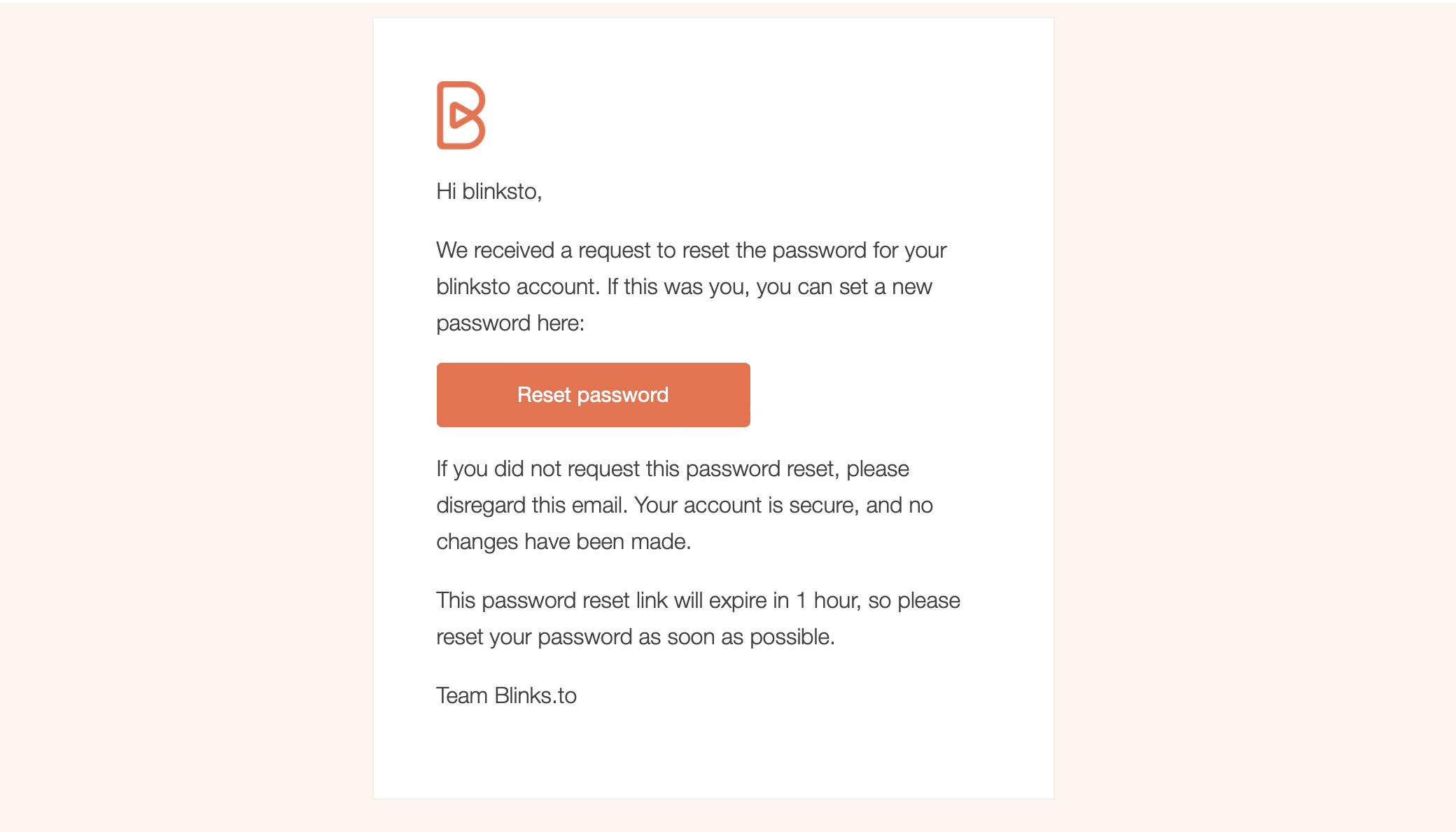
2. You will be redirected to the password reset email form. Enter your registered email address and confirm it. Shortly, you will receive instructions via email, including a link to reset your password.
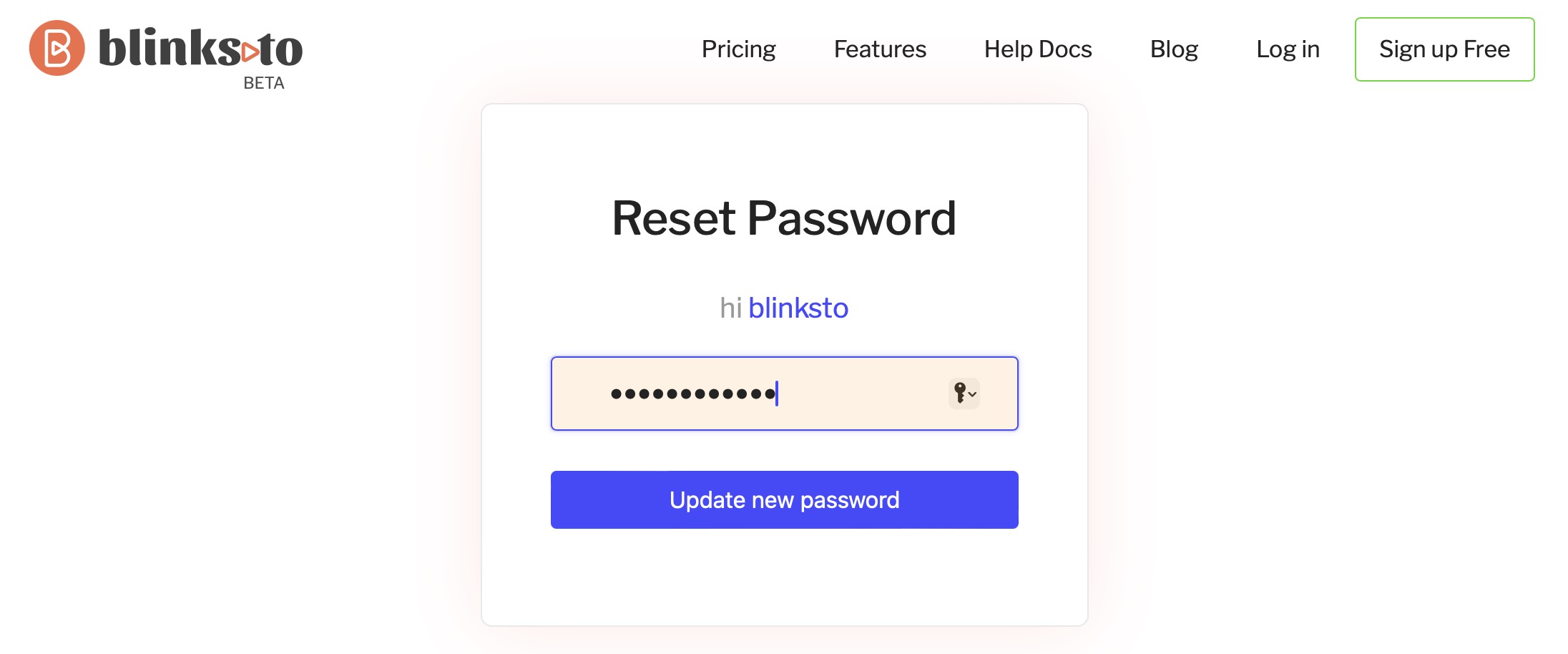
3. Click on the 'Reset Password' button in the email. This will take you back to the application, where you can enter a new password.
4. Enter your new password and click on the 'Update New Password' button.
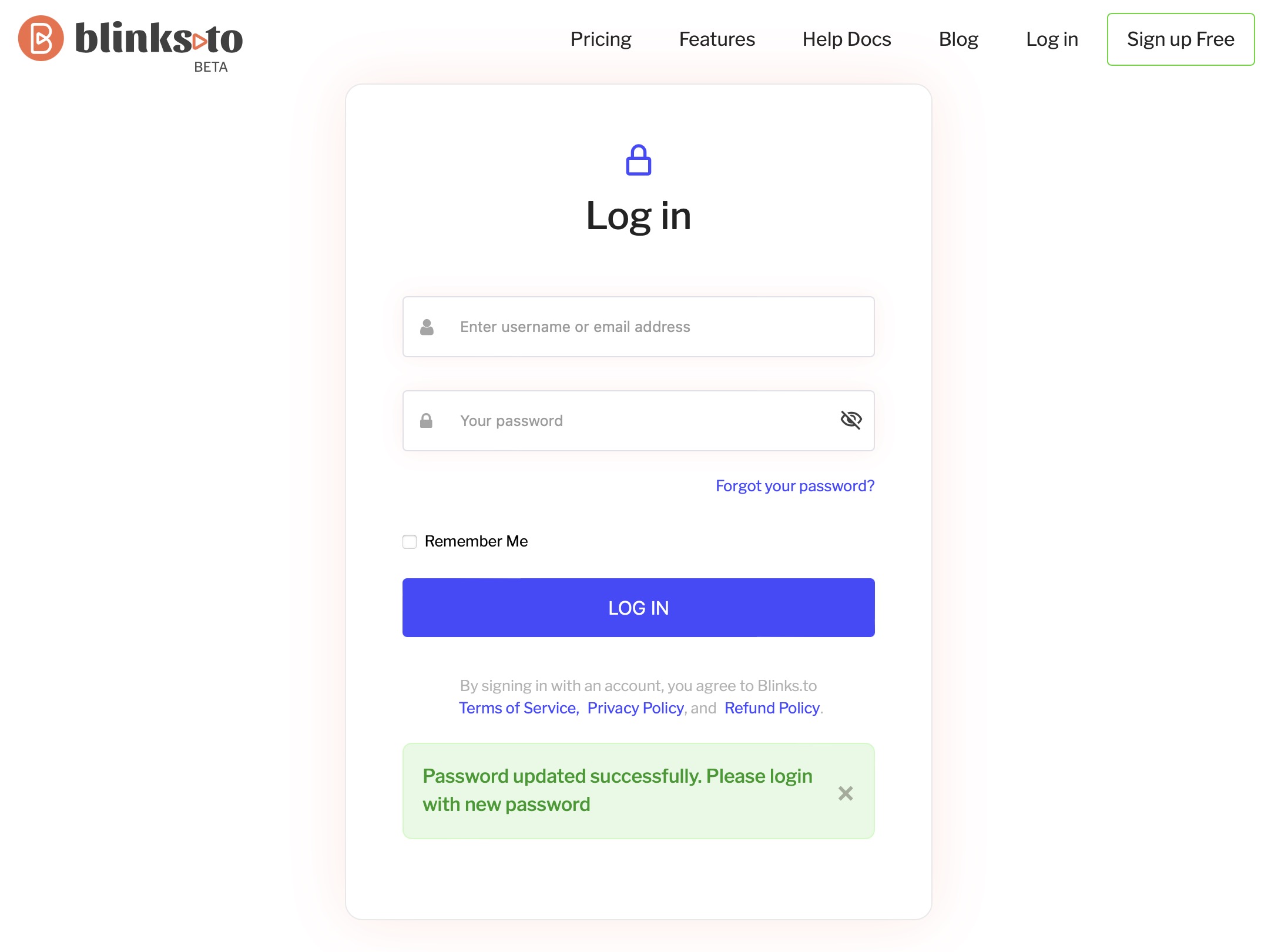
5. Your password is successfully updated, and you will be redirected to the login screen to access your account with the new password.

These steps are visually presented in the following tabs for easy reference.

{% tabs %}
{% tab title="Step 1" %}

<figure><img src="https://2213782032-files.gitbook.io/~/files/v0/b/gitbook-x-prod.appspot.com/o/spaces%2FcuQD9bKpuaPH1WnZJ9Zl%2Fuploads%2FIOXxr8Syk8NL5XBZBUYi%2FSecurity.jpg?alt=media&#x26;token=051a9116-2ea3-49d6-8777-7f0d197f6162" alt=""><figcaption><p>Img 5 - Update password button</p></figcaption></figure>
{% endtab %}

{% tab title="Step 2" %}

<figure><img src="https://2213782032-files.gitbook.io/~/files/v0/b/gitbook-x-prod.appspot.com/o/spaces%2FcuQD9bKpuaPH1WnZJ9Zl%2Fuploads%2Fbt8FSnDrkHp0tZgHWKSh%2FSecutiry%20-%20Password%20Reset.jpg?alt=media&#x26;token=3029ed56-585b-4e9c-93ce-8d4579c0d75a" alt=""><figcaption><p>Img 6 - Password reset form</p></figcaption></figure>

{% endtab %}

{% tab title="Step 3" %}
Email with password reset instructions

<figure><img src="https://2213782032-files.gitbook.io/~/files/v0/b/gitbook-x-prod.appspot.com/o/spaces%2FcuQD9bKpuaPH1WnZJ9Zl%2Fuploads%2FfEFkZxgFWVsQLhQBWhDr%2FSecutiry%20-%20Password%20Reset%20Email.jpg?alt=media&#x26;token=ef0b8055-ae96-4aa8-abb9-6cd5e07c6494" alt=""><figcaption><p>Img 7 - Email with reset password instructions</p></figcaption></figure>
{% endtab %}

{% tab title="Step 4 " %}

<figure><img src="https://2213782032-files.gitbook.io/~/files/v0/b/gitbook-x-prod.appspot.com/o/spaces%2FcuQD9bKpuaPH1WnZJ9Zl%2Fuploads%2FYECqK3NFPx37Y2TF9KlO%2FSecurity%20-%20New%20Password.jpg?alt=media&#x26;token=84e6e7f1-cbe7-4b00-b374-00810fbe3f04" alt=""><figcaption><p>Img 8 - Update new password</p></figcaption></figure>
{% endtab %}

{% tab title="Step 5 " %}

<figure><img src="https://2213782032-files.gitbook.io/~/files/v0/b/gitbook-x-prod.appspot.com/o/spaces%2FcuQD9bKpuaPH1WnZJ9Zl%2Fuploads%2FI1llhWQ1x4n6NHhb7kHn%2FSecurity%20-%20Password%20Updated.jpg?alt=media&#x26;token=3a2ea8bb-3dd9-403b-a43a-544fc1d297a9" alt=""><figcaption><p>Img 9 - Login with new updated password</p></figcaption></figure>
{% endtab %}
{% endtabs %}

### <mark style="color:purple;">C. Export your data</mark>

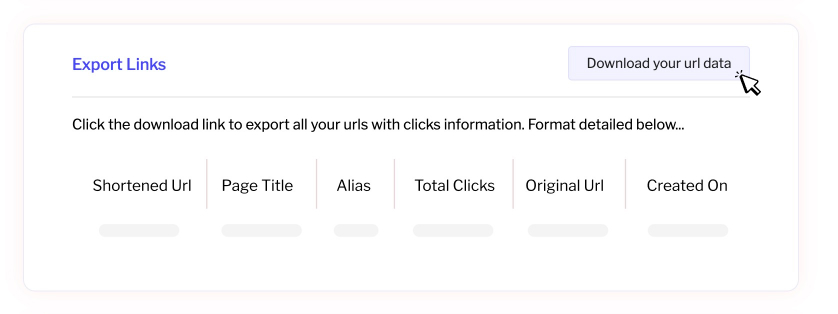
Exporting your data is a breeze. Simply click on the 'Download your URL data' button to retrieve a comprehensive list of all your URLs, complete with details such as the shortened URL, page title, total clicks, original URL, and more.

<figure><img src="https://2213782032-files.gitbook.io/~/files/v0/b/gitbook-x-prod.appspot.com/o/spaces%2FcuQD9bKpuaPH1WnZJ9Zl%2Fuploads%2Fo9waozuu8HM36NQHkjnQ%2FExport%20Links.jpg?alt=media&#x26;token=a405c374-7b69-4b07-89e9-c2ef997eb826" alt=""><figcaption><p>Img 10 - Export your links and clicks data</p></figcaption></figure>

### <mark style="color:purple;">D. Access History</mark>

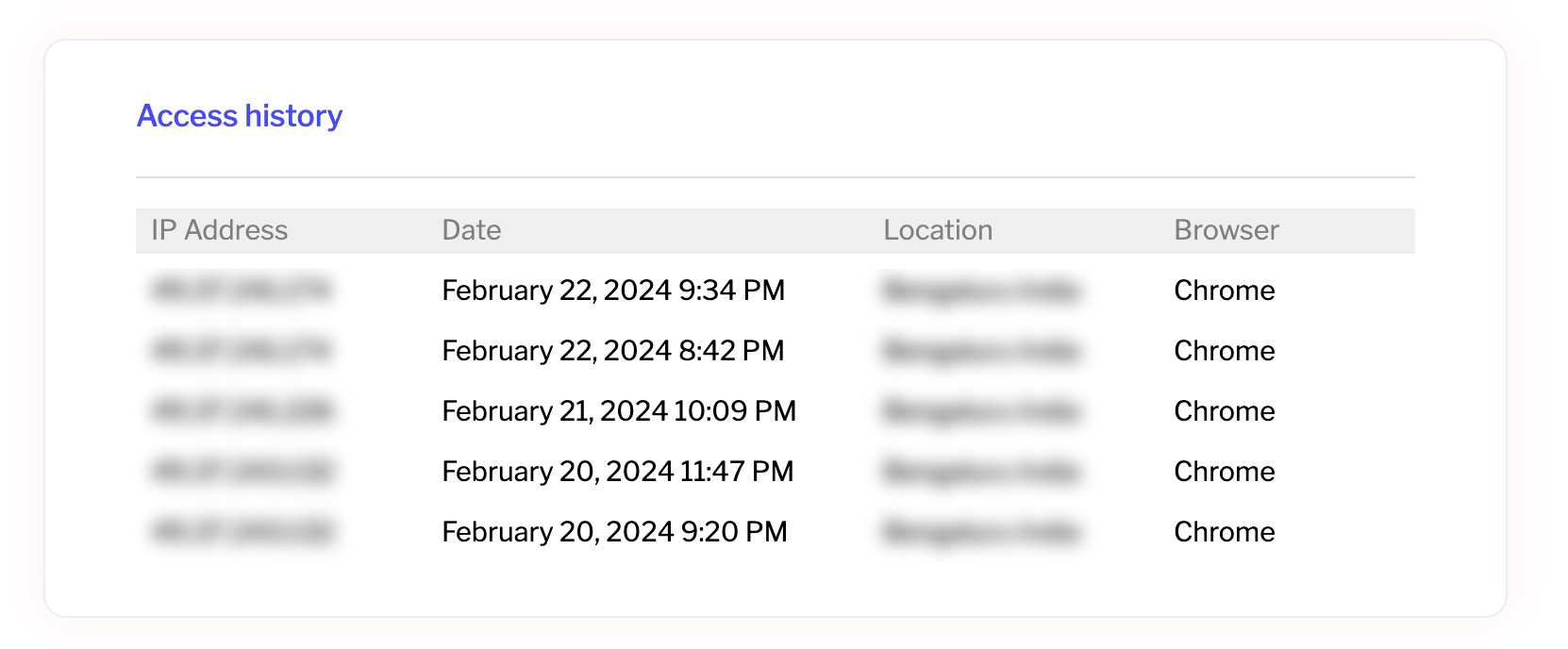
Offers a detailed record of your recent login history, including IP addresses, browser, locations, and timestamps, to enhance security measures.

<figure><img src="https://2213782032-files.gitbook.io/~/files/v0/b/gitbook-x-prod.appspot.com/o/spaces%2FcuQD9bKpuaPH1WnZJ9Zl%2Fuploads%2Fx3kKEZXLRd5CQmY1CtCE%2FAccess%20History.jpg?alt=media&#x26;token=f46d8a5c-c53a-45ce-88a0-a7cf635e95b8" alt=""><figcaption><p>Img 11 - Recent login history</p></figcaption></figure>

### <mark style="color:purple;">E. Account Deletion</mark>

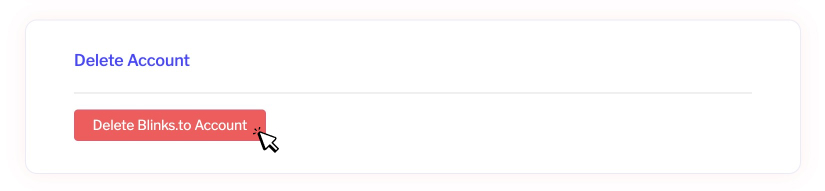
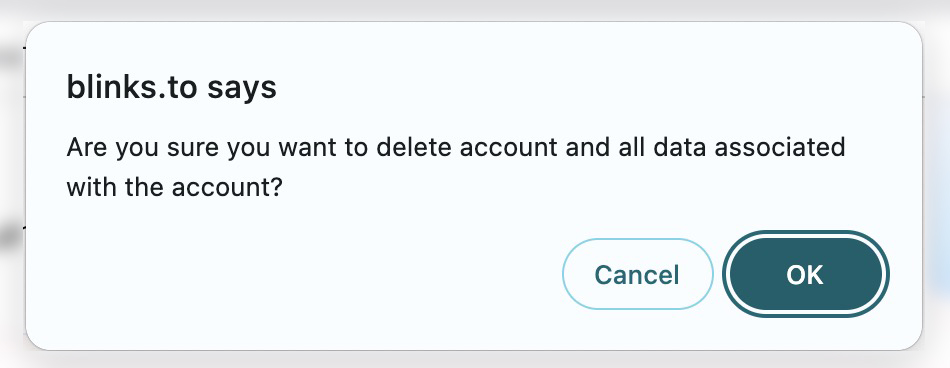
If you decide to close your account and delete it, we've streamlined the process for you. Simply click on the 'Delete Account' button. A confirmation pop-up will appear. Confirm the deletion, and your account will be permanently removed. While we'll be sad to see you go, your satisfaction is our priority.

<figure><img src="https://2213782032-files.gitbook.io/~/files/v0/b/gitbook-x-prod.appspot.com/o/spaces%2FcuQD9bKpuaPH1WnZJ9Zl%2Fuploads%2FD6ukB3aZW4z4hG9FB8DE%2FDelete%20Account.jpg?alt=media&#x26;token=5a159271-fd53-4e76-95ab-9235879ad848" alt=""><figcaption><p>Img 12 - Delete your account</p></figcaption></figure>

<figure><img src="https://2213782032-files.gitbook.io/~/files/v0/b/gitbook-x-prod.appspot.com/o/spaces%2FcuQD9bKpuaPH1WnZJ9Zl%2Fuploads%2F0BGcEgfh0QsN3op4pOSO%2FAccount%20Deletion%20confirmation.jpg?alt=media&#x26;token=7377b9ea-d0da-470e-adb9-0317a5229bf1" alt="" width="375"><figcaption><p>Img 13 - Account deletion confirmation</p></figcaption></figure>